
這篇文章將教你如何在 macOS 上設置 C/C++ 開發環境,使用 Xcode 安裝必需工具,並在 Visual Studio Code 中配置相關擴展和設定。無論是初學者還是有經驗的開發者,都能輕鬆開始在 Apple Silicon 平台上進行 C/C++ 開發。
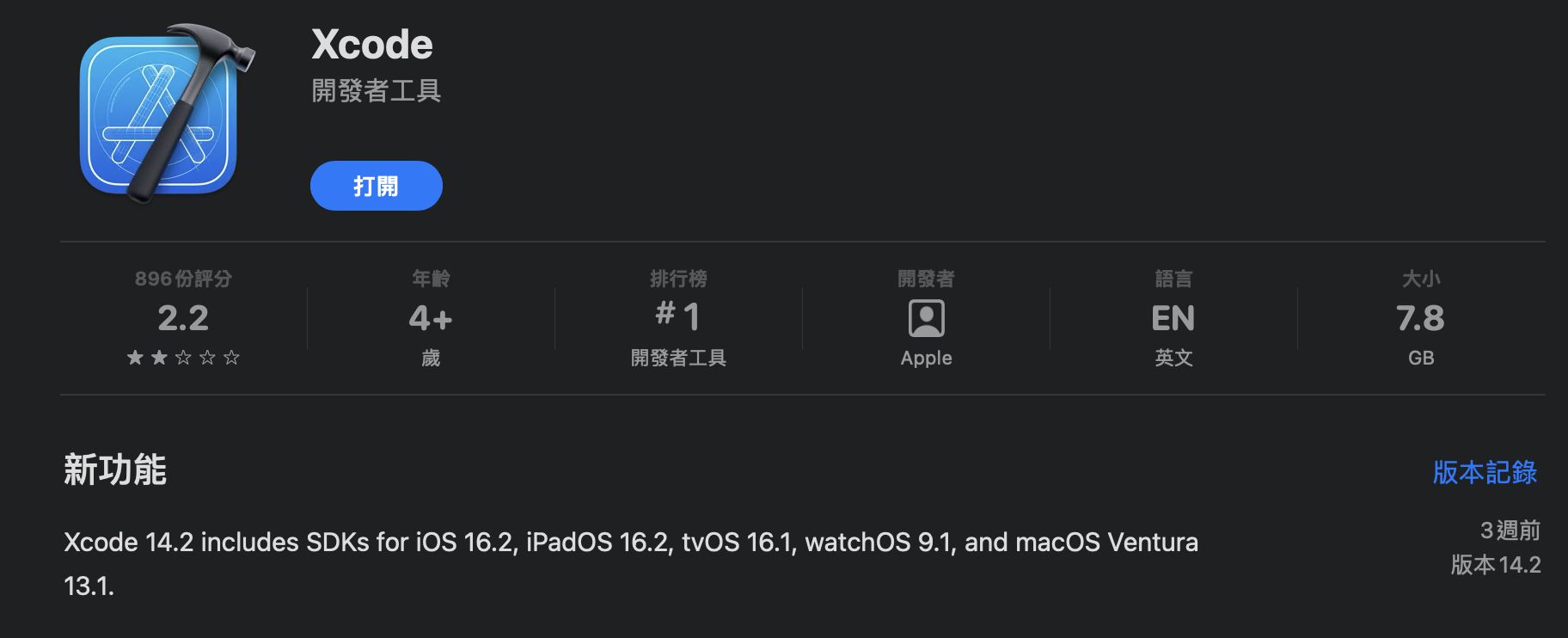
安裝 Xcode#
VScode 延伸模組#
在 Visual Studio Code (VScode) 上進行 C/C++ 開發需要安裝相關的擴充套件。這些套件提供了語法高亮、程式碼補全、偵錯等功能,幫助提升開發效率。
安裝過程中,請確保你的 VScode 擴充模組包含了 C/C++ 擴展: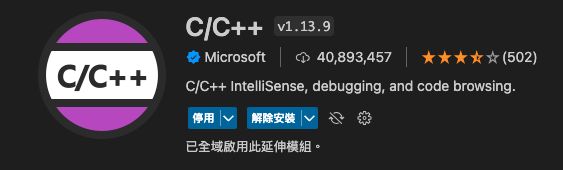
Test#
你可以前往 Mac-Apple-Silicon-Cpp-VScode-Config 下載範例程式碼,該範例包含了所需的配置文件,你可以通過它來快速測試你的開發環境。
下載後,按下偵錯按鈕來執行 C/C++ 程式: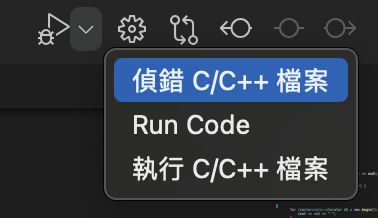
配置文件#
為了讓 Visual Studio Code 正常編譯和偵錯 C/C++ 程式,你需要配置 tasks.json 和 launch.json 兩個文件。以下是這兩個文件的範本:
tasks.json#
tasks.json 是用來定義如何編譯 C/C++ 程式的任務配置。你可以使用 clang++ 編譯器來編譯當前打開的文件。
{
    "tasks": [
        {
            "type": "cppbuild",
            "label": "C/C++: clang++ build active file",
            "command": "/usr/bin/clang++",
            "args": [
                "-fdiagnostics-color=always",
                "-g",
                "${file}",
                "-o",
                "${fileDirname}/${fileBasenameNoExtension}"
            ],
            "options": {
                "cwd": "${fileDirname}"
            },
            "problemMatcher": [
                "$gcc"
            ],
            "group": {
                "kind": "build",
                "isDefault": true
            },
            "detail": "偵錯工具產生的工作。"
        }
    ],
    "version": "2.0.0"
}
launch.json#
launch.json 用於設定偵錯配置,讓你能夠在 VScode 中直接調試 C/C++ 程式。這裡使用 lldb 作為偵錯工具。
{
    "version": "0.2.0",
    "configurations": [
        {
            "type": "lldb",
            "request": "launch",
            "name": "C/C++: clang++ build and debug active file",
            "program": "${workspaceFolder}/${fileBasenameNoExtension}",
            "args": [],
            "cwd": "${workspaceFolder}",
            "preLaunchTask": "C/C++: clang++ build active file"
        }
    ]
}
這些配置文件會幫助你順利在 VScode 中編譯並偵錯 C/C++ 程式,並提供順暢的開發體驗。
完成上述配置後,你就能開始進行 C/C++ 程式開發和偵錯,並在 macOS 上充分發揮 Apple Silicon 平台的強大性能!